
How to activate a Brightsign player
1. Insert an empty memory card
2. Connect a network cable with internet access
3. Turn on the player
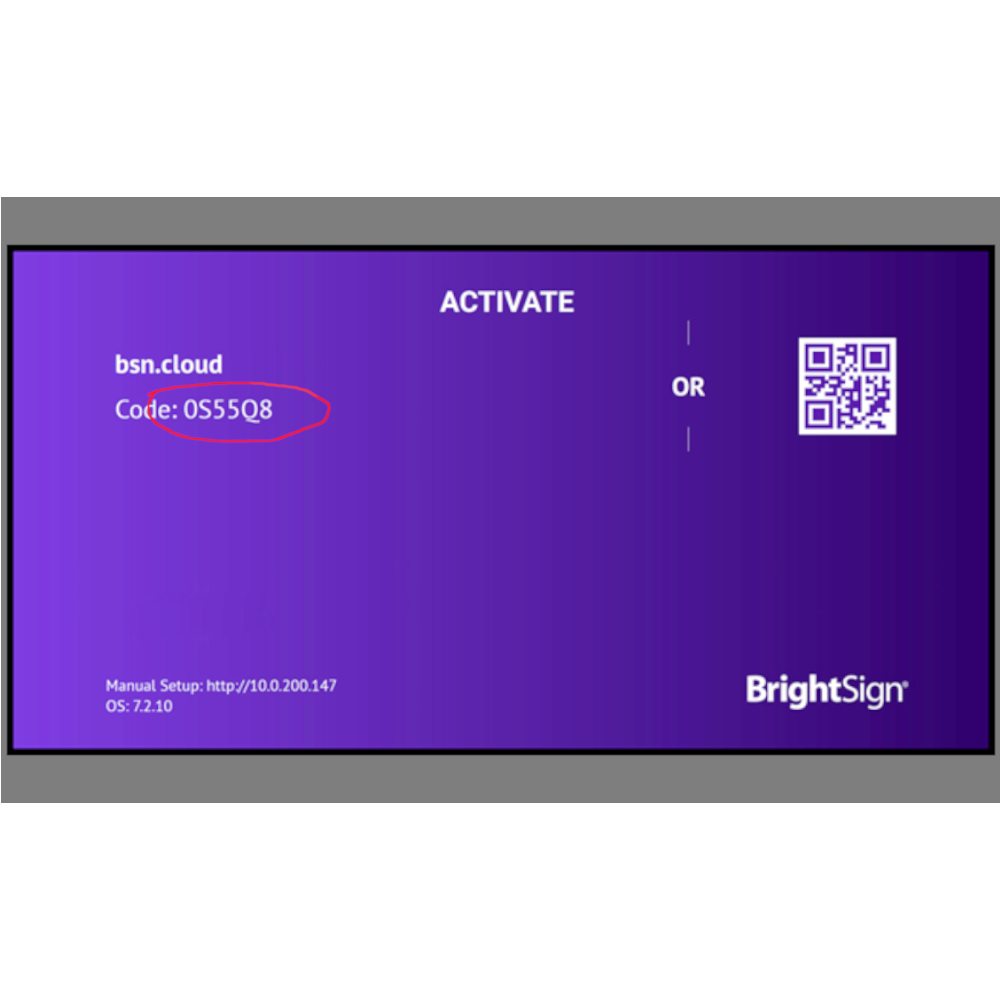
4. Enter the code in BA Connected
2. Connect a network cable with internet access
3. Turn on the player
4. Enter the code in BA Connected
- Fast Deliveries!
- Any Questions? We will help you!
- Multiple payment options!
- BrandBRIGHTSIGN
- SubjectDIGITAL SIGNAGE
Description
Activating a Brightsign player to the Control Cloud is easy both if you only want to activate one or if you want to activate many.
There are three different ways:
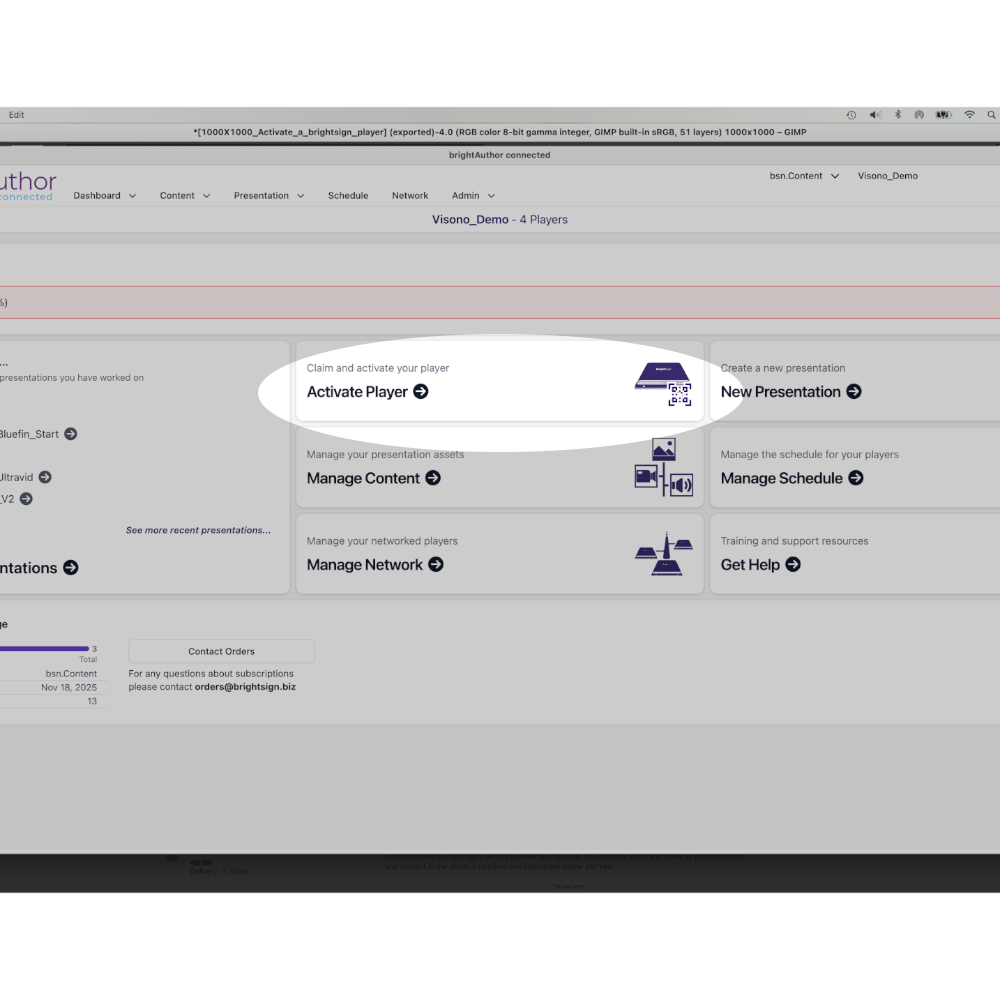
1. the most common is to click on Activate player in BrightAuthor Connected and enter the code that appears on the screen when an unactivated player is connected.
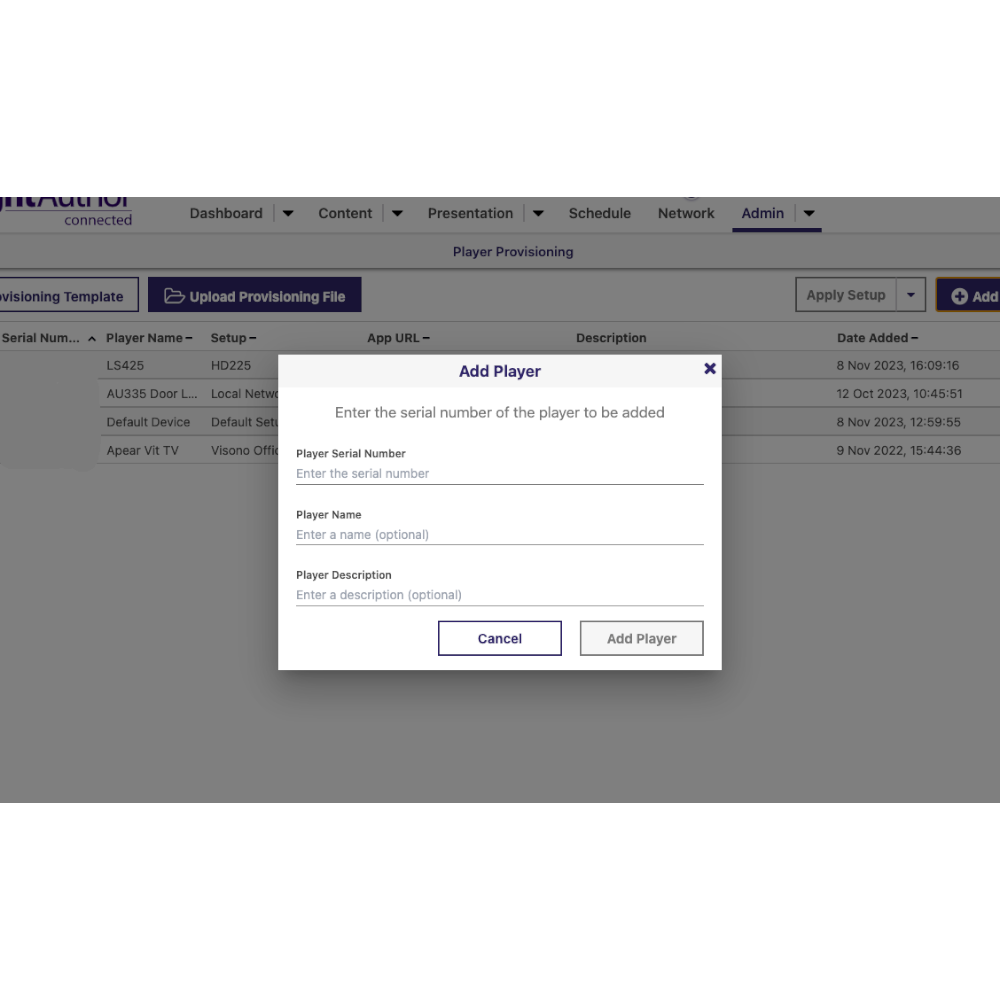
2. If you want to activate a player that is not connected, you can do so via: Admin > Provision > + Add Player. There you enter the serial number and possibly the name and description of the player. It will then connect to your network as soon as it gets an internet connection.
3. If you want to activate many players, you can do it via a .CSV file. Download the file below, fill in the serial number, possibly name and description of all players and upload it under Admin > Provision > Upload Provisioning File.
Content.Cloud is Brightsign's service to allow you to build, edit, publish, store and share all presentations and content in the cloud. It requires one license per player per year.
There are three different ways:
1. the most common is to click on Activate player in BrightAuthor Connected and enter the code that appears on the screen when an unactivated player is connected.
2. If you want to activate a player that is not connected, you can do so via: Admin > Provision > + Add Player. There you enter the serial number and possibly the name and description of the player. It will then connect to your network as soon as it gets an internet connection.
3. If you want to activate many players, you can do it via a .CSV file. Download the file below, fill in the serial number, possibly name and description of all players and upload it under Admin > Provision > Upload Provisioning File.
Control Cloud and Content Cloud - what is the difference?
Control.Cloud is a free service included with all Brightsign players. It allows you to monitor them, update FW and make sure they do what you want them to do. Control.Cloud is free!Content.Cloud is Brightsign's service to allow you to build, edit, publish, store and share all presentations and content in the cloud. It requires one license per player per year.
Files and media
 | Template for CSV import |