


Pixilab - Sync Spot
€232
Integrate a Watchout server into a Blocks installation for advanced projection mapping. Ideal for facade projections and immersive exhibitions.
(Optional)
- Fast Deliveries!
- Any Questions? We will help you!
- Multiple payment options!
- BrandPIXILAB
Description
Article no.: 622-0190
WATCHOUT can be used with Blocks for advanced multi-projection or mapping purposes. A WATCHOUT systems consists of display computers, and (optionally) a production computer. The production computer is typically only used during show preparation, and can then be removed. However, in some cases, it’s left as part the system in order to facilitate quick changes.
NOTE: In WATCHOUT version 7, only the main computer (“director”) can be controlled, since it doesn’t have the same cluster concept as previous versions. It must be addressed by its IP address. Furthermore, functions that have no counterpart in that version, such as stand-by and layer conditions, can not be controlled. Auto-discovery and remote power on/off of the computers in the system is not supported.
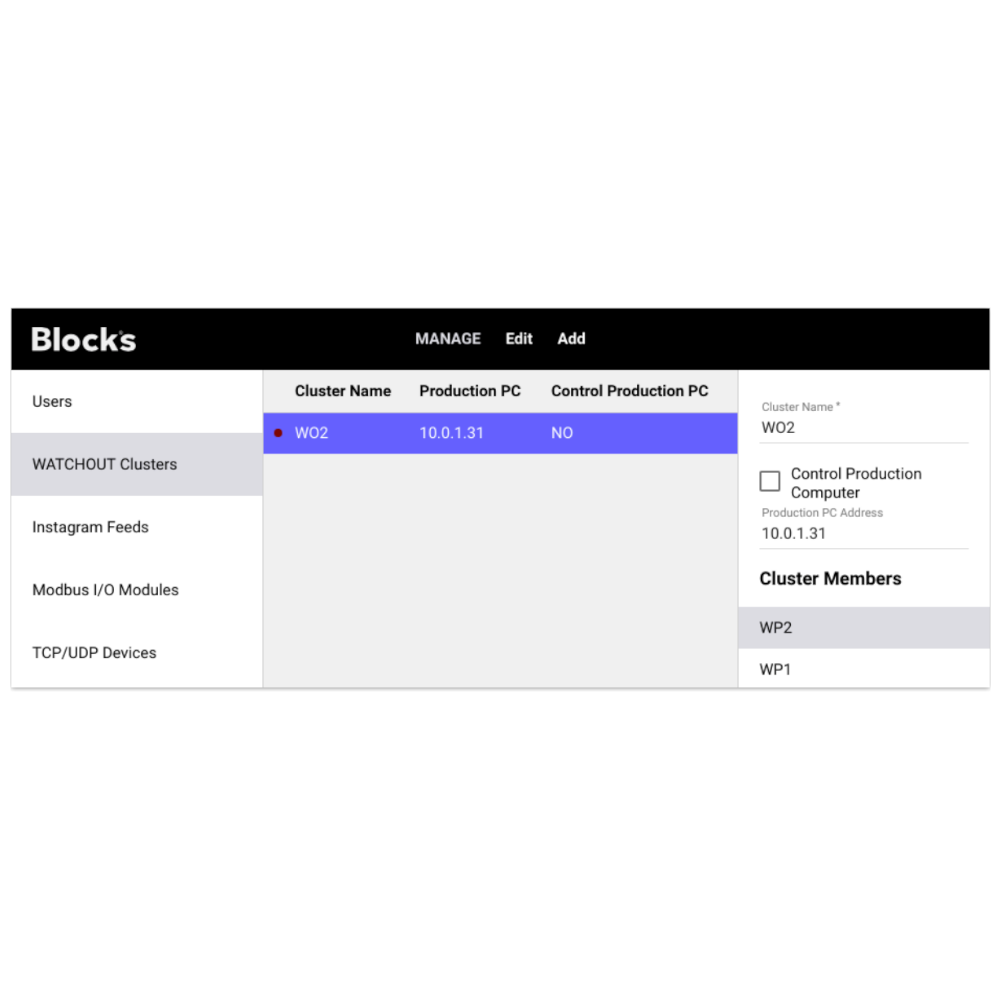
Add a WATCHOUT subsystem using the “Add” menu. If you plan on keeping the production computer as part of the system, enter its IP address in the “Production PC Address” field. If not, leave that field empty. Alternate between controlling the production computer or the display cluster using the “Control Production Computer” checkbox. The red dot in the list turns green to indicate a successful connection. Blocks will automatically retry failed connections until it succeeds.
WATCHOUT version 6 specific options
The name you give should match any “Cluster Name” specified in the Preferences dialog box in WATCHOUT 6. Using the same name, as well as display computer names (see below), allows Blocks to find the cluster on the network without having to specify fixed IP addresses for each display computer.
Add display computers using the “Add Member” command on the “Add” menu. If you’re controlling the production computer, this isn’t strictly necessary, as all control will then go through the production computer anyway. But if you later want to remove the production computer and control the display computers directly, you should add those as well to support that mode of operation. When adding display computers, you must give each computer a name. This name should match any name given to the display computer in the WATCHOUT production software.
Optionally, you may specify an IP address for each display computer. Use this method if you use fixed IP addresses for the display computers in your WATCHOUT show. You may also designate one display computer to act as the “primary” in the cluster, which tells it to act as the master within that cluster. Usually, you don’t care which computer becomes the master, in which case you can leave this option unchecked.
Controlling WATCHOUT
Once added to Blocks, you can control WATCHOUT using buttons, sliders and tasks or use it as a synchronization time source. You can also use events, such as a timeline reaching its end, to trigger tasks.
NOTE: In WATCHOUT version 7, only the main computer (“director”) can be controlled, since it doesn’t have the same cluster concept as previous versions. It must be addressed by its IP address. Furthermore, functions that have no counterpart in that version, such as stand-by and layer conditions, can not be controlled. Auto-discovery and remote power on/off of the computers in the system is not supported.
Add a WATCHOUT subsystem using the “Add” menu. If you plan on keeping the production computer as part of the system, enter its IP address in the “Production PC Address” field. If not, leave that field empty. Alternate between controlling the production computer or the display cluster using the “Control Production Computer” checkbox. The red dot in the list turns green to indicate a successful connection. Blocks will automatically retry failed connections until it succeeds.
WATCHOUT version 6 specific options
The name you give should match any “Cluster Name” specified in the Preferences dialog box in WATCHOUT 6. Using the same name, as well as display computer names (see below), allows Blocks to find the cluster on the network without having to specify fixed IP addresses for each display computer.
Add display computers using the “Add Member” command on the “Add” menu. If you’re controlling the production computer, this isn’t strictly necessary, as all control will then go through the production computer anyway. But if you later want to remove the production computer and control the display computers directly, you should add those as well to support that mode of operation. When adding display computers, you must give each computer a name. This name should match any name given to the display computer in the WATCHOUT production software.
Optionally, you may specify an IP address for each display computer. Use this method if you use fixed IP addresses for the display computers in your WATCHOUT show. You may also designate one display computer to act as the “primary” in the cluster, which tells it to act as the master within that cluster. Usually, you don’t care which computer becomes the master, in which case you can leave this option unchecked.
Controlling WATCHOUT
Once added to Blocks, you can control WATCHOUT using buttons, sliders and tasks or use it as a synchronization time source. You can also use events, such as a timeline reaching its end, to trigger tasks.