

Pixilab - Block license: QR code generator
€186
Use QR codes as an interactive element in Blocks. Either with fixed or programmable values. Perfect for:
- Open a control panel in a phone or toad.
- Play content in a specific location
- Play audio in a mobile phone that is synchronized with image on a screen or projection.
- Fast Deliveries!
- Any Questions? We will help you!
- Multiple payment options!
- BrandPIXILAB
Description
Article no.: 622-0230
Displays a QR Code on screen, with either fixed or programmable data.
NOTE: This is a premium block type, requiring a license in order to be displayed.
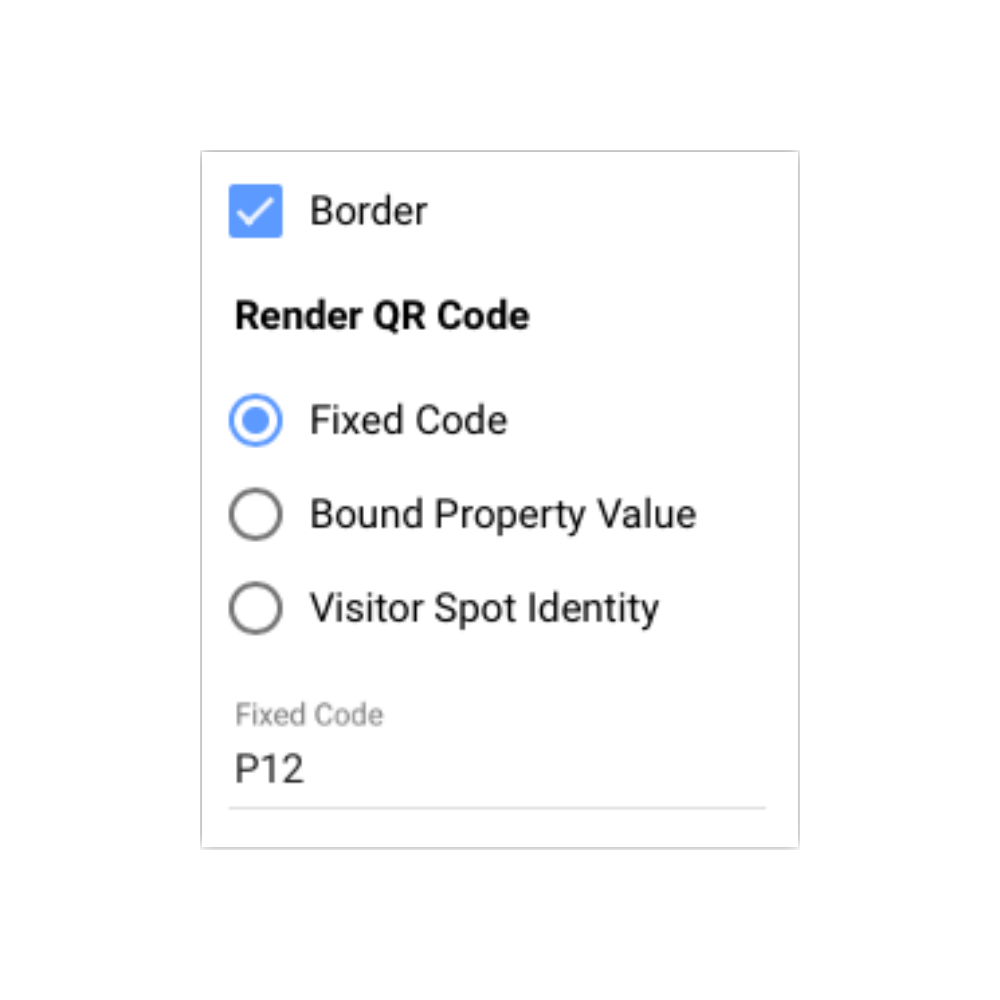
Border automatically applies a white border around the QR code for improved readability against a colored background.
The data represented by the QR code may be a number or a short text, but is often a URL. It may originate from one of the following sources:
Most mobile phones have an inbuilt QR code scanner – for instance the iOS Camera app, Google Lens on Android or using a separate QR scanner app – taking care of the first step. Here’s an example of such a QR code URL (here using the “Spot path” option, rather than an ID number): https://pixi.guide?spot=Entrance.Welcome
NOTE: This is a premium block type, requiring a license in order to be displayed.
Border automatically applies a white border around the QR code for improved readability against a colored background.
The data represented by the QR code may be a number or a short text, but is often a URL. It may originate from one of the following sources:
- A fixed code. Just type what you want to be rendered as a QR Code.
- The value of a bound property. This may be a Spot-local parameter, a Realm variable, or any other property in your system.
- A visitor's mobile device identity. This option allows a visitor to be identified by presenting a QR code shown on her mobile device’s display. This can then be read by a QR Scanner block at a kiosk being visited, thereby letting Blocks know who’s where. This option is particularly useful when using the Visitor Data Collection feature of Blocks to follow your visitors for a more personalized experience.
- A plain Location ID number. This results in the shortest QR code, increasing its readability. It’s also useful in cases where you want to present both a location ID number and a QR code to your visitors.
- A Spot name or path (with path segments separated by a period). This operates independently of any Location ID, and not such ID need to be assigned to the Spot.
- A URL, indicating which Spot to locate using a spot query parameter appended to the URL, with a value set to the Location ID or Spot path, as described in the previous two points.
- Open a Visitor Spot web page (using the URL part).
- Locate the correct spot in Blocks (using the spot query parameter).
Most mobile phones have an inbuilt QR code scanner – for instance the iOS Camera app, Google Lens on Android or using a separate QR scanner app – taking care of the first step. Here’s an example of such a QR code URL (here using the “Spot path” option, rather than an ID number): https://pixi.guide?spot=Entrance.Welcome