

Pixilab - Block license: Locator
- Fast Deliveries!
- Any Questions? We will help you!
- Multiple payment options!
- BrandPIXILAB
Description
Article no.: 622-0220
The Locator block is used to determine the visitor's current location in an exhibit, installation, or venue — in order to present location-specific content. It doesn’t show content by itself but triggers other blocks (typically Spot-related content).
NOTE: This is a premium feature — you’ll need an additional license to use it.
Location Detection Methods
Visitors can be located using several methods (you can enable multiple options):
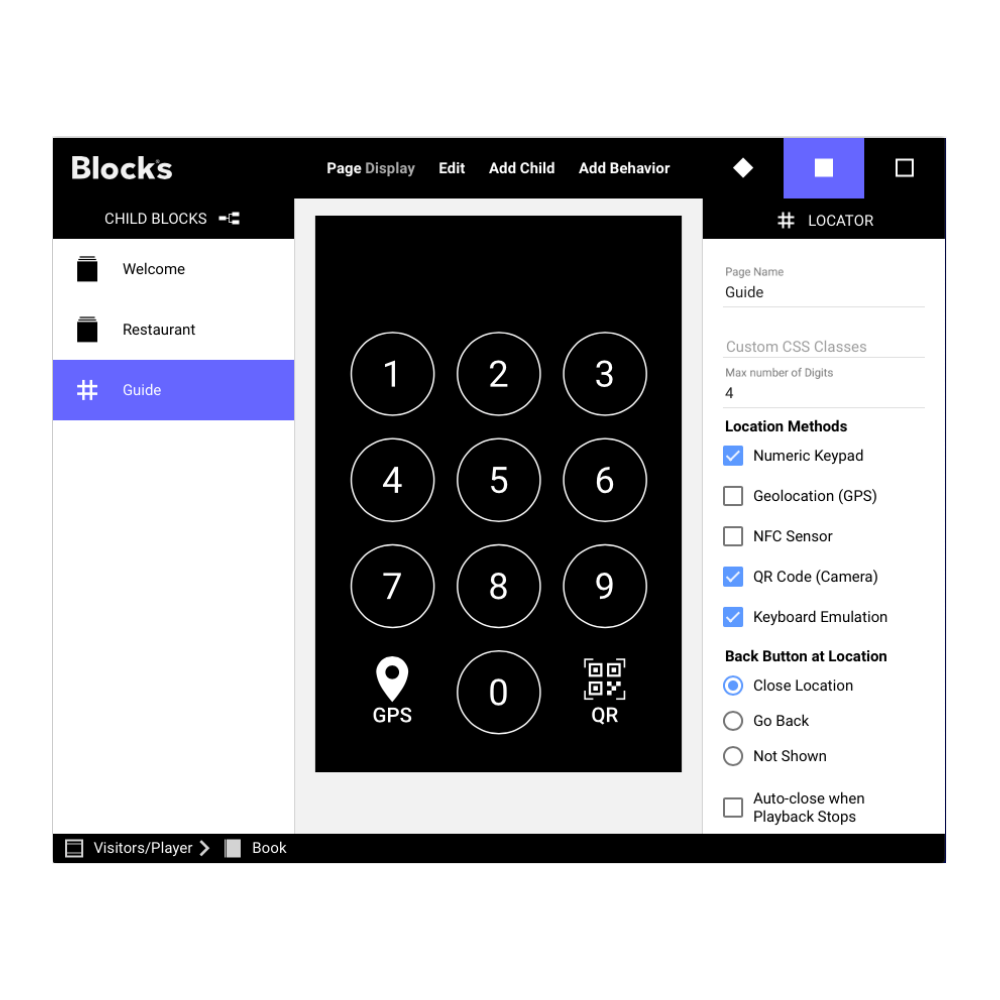
Numeric Keypad
User enters a number corresponding to a Location ID shown at the physical spot.GPS (Geolocation)
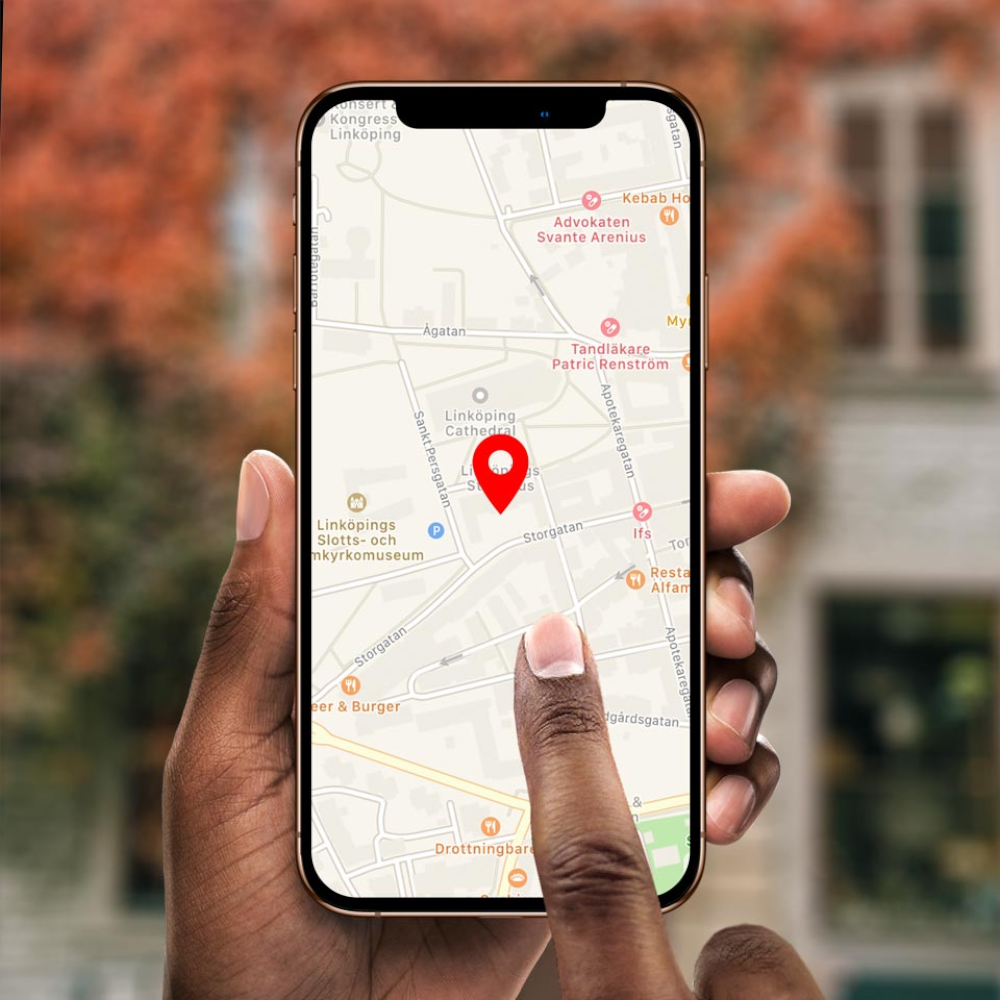
Matches current GPS position to a geofenced Spot. Requires an HTTPS connection and a GPS-capable device (e.g., smartphone). Works best outdoors.QR Code Scanning
Uses device camera to scan a QR code linked to a specific Spot. Also requires HTTPS.NFC Tag Scanning
Tap an NFC tag to trigger a Spot location. Requires HTTPS and is more limited on iOS (must open Safari).RFID/Keyboard Emulation
External hardware (e.g., Zebra scanner) types the Location ID and presses "Enter" as if using a keyboard.Manual On-Screen Button
For example, touch an object on-screen to locate it.
Visitor Experience Flow
The user interacts with the Locator (via keypad, GPS, QR, etc.).
The corresponding Spot block is shown (could be image, video, audio, or a whole multi-page guide).
When playback ends, the Locator can auto-return to the keypad/menu — or remain, based on settings.
A back button is available (unless disabled) to return manually.
Key Settings
Location Methods: Choose which detection methods are available.
Back Button at Location:
Close Location: Immediate return to keypad/menu.
Go Back: Like browser back — navigates step-by-step.
Not Shown: Use a custom button to close.
Auto-close when Playback Stops: Locator returns to idle view after playback, with optional delay.
Geolocation Performance: Balance accuracy vs. speed (e.g., "Most Accurate" vs. "Balanced").
Optional Binding: Bind the current Spot info to a variable (boolean, number, or string) — useful for advanced scripting or interactivity.
Composability
A Locator can live inside other blocks like Book, Stack, or Composition, enabling multi-level, multi-language, or themed guides.
You can hide the numeric keypad if not needed, e.g., when using programmatic or button-triggered location detection.
Dual Use: Display + Visitor
If you want the same content to appear on both Display and Visitor spots, use:
A Synchronizer or Tag Selector as the top-level block.
Child blocks tagged appropriately (e.g., “mobile” for visitors).
Important HTTPS Notes
GPS, QR, and NFC modes only work over HTTPS.
Requires a valid SSL certificate.
User interaction is always needed to trigger these modes (browser security requirement).