

Pixilab - Block License: Live Video
€1,162
View streamed video anywhere in your Block Presentation. Perfect for:
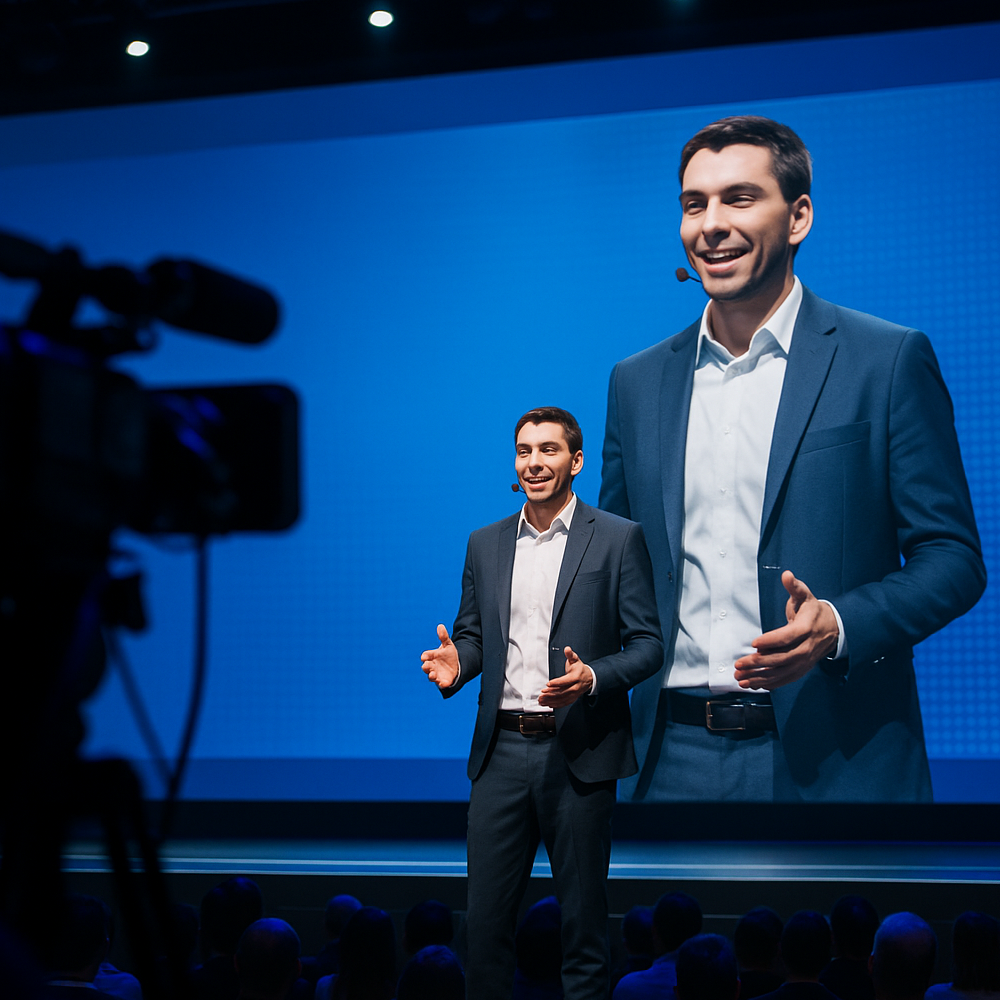
- Live events, such as corporate meetings or concerts
- Theaters and opera houses that want to show the performance with low delay inside the building
- Offices where information is displayed, for example next to news broadcasts
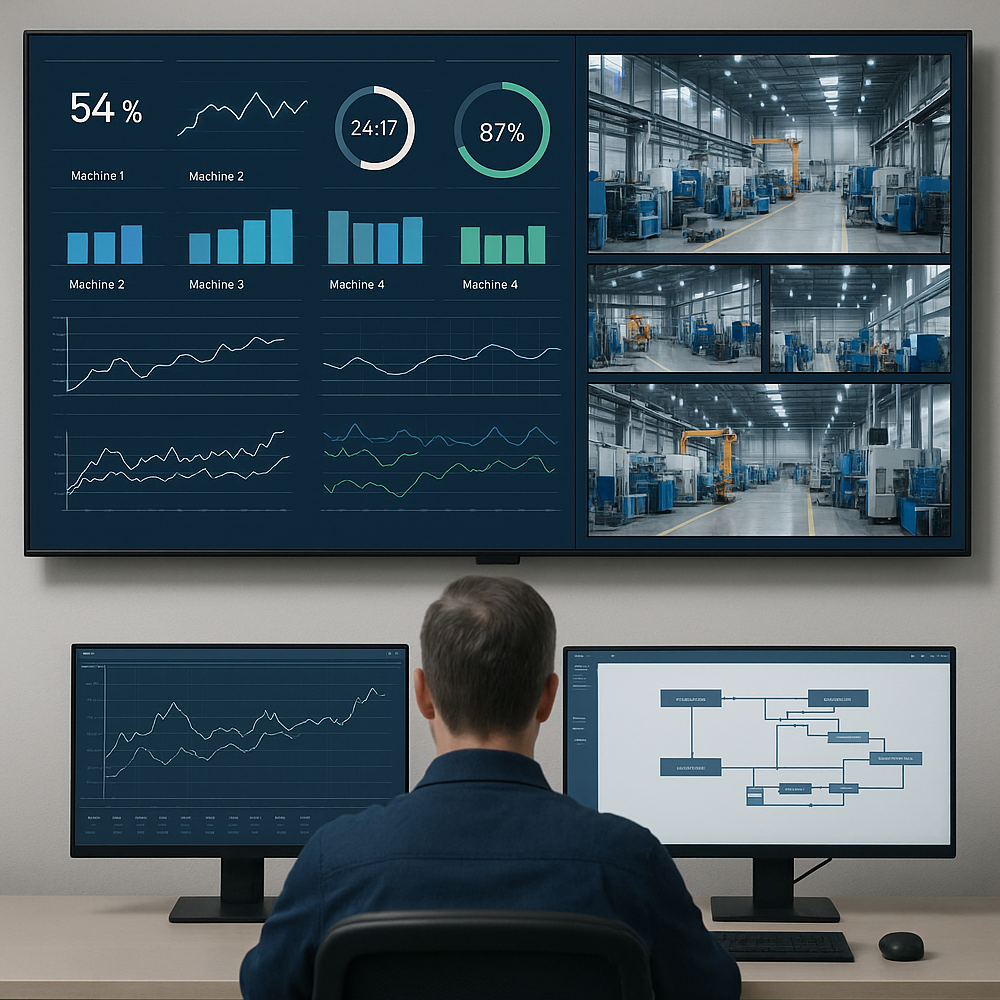
- Control rooms in industry where you want to see live operations
- Fast Deliveries!
- Any Questions? We will help you!
- Multiple payment options!
- BrandPIXILAB
Description
Article no.: 622-0195
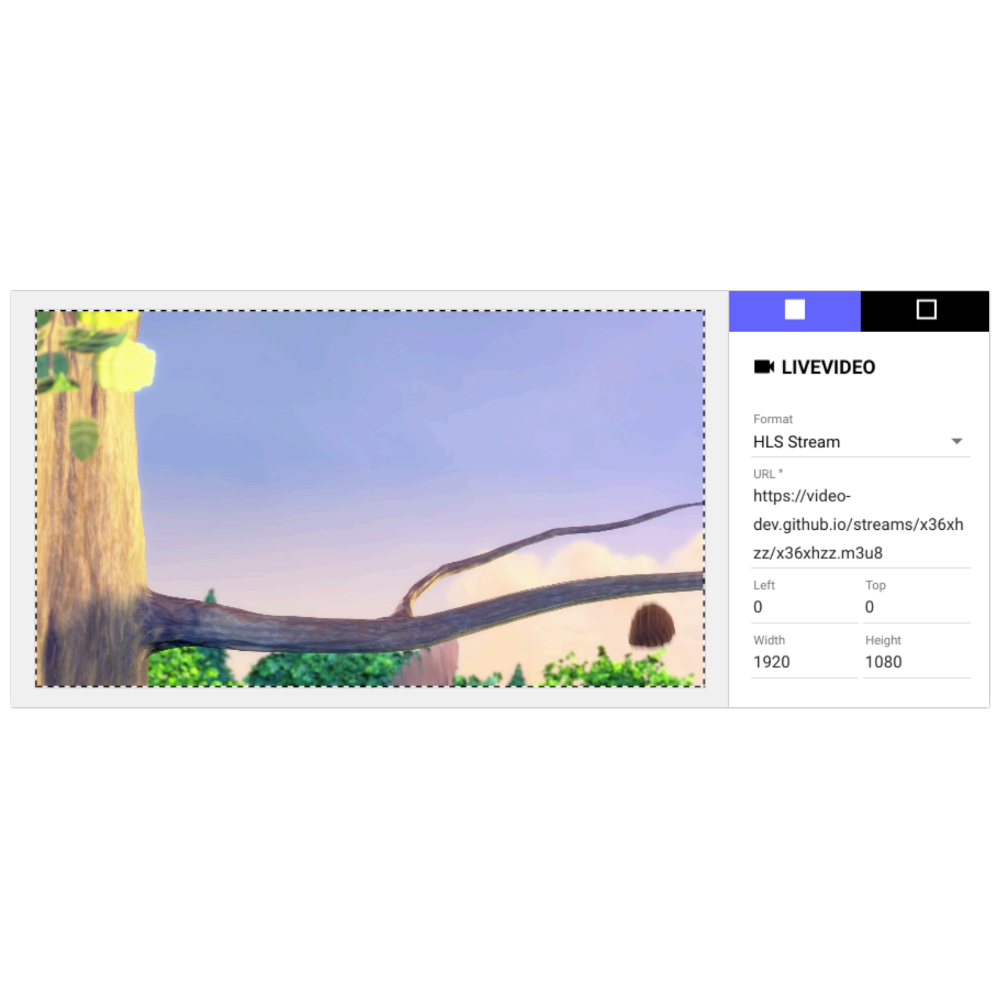
Use a Live Video block to display streaming video, originating from a camera, streaming box, web service or other source.
NOTE: This is a premium block type, requiring a license options in order to be displayed.
Stream Includes Audio
Select this if audio is desired, or if the source provides audio. For the RTSP, RTMP and SRT formats, this setting must match the source stream in terms of audio availability. A mismatch here may cause the stream to fail.
Use TCP Transport
Applies to RTSP format only. Normally, RTSP uses UDP to transfer the stream from the camera/encoder to Blocks. In some networks, TCP may be required for a reliable connection. Try this option if the normal UDP method doesn’t work reliably.
Source Stream Timeout
Specifies how long to wait for the stream to respond before attempting to reload the stream, in minutes and seconds.
Dynamic URL
If selected, the URL to be used for the stream is obtained from a bound property rather than being specified fixed. This allows you to control the URL to be used by other means or to switch URL on the fly.
Optimize Stream for
The RTSP and RTMP streaming formats can provide reasonably low latency. However, attempting to minimize the latency may result in video dropping out if the source data doesn’t arrive on time, since this uses a smaller data buffer.
Playback Start
Controls whether buffering of a network stream happens before playback begins or in parallell with playback.
NOTE: This is a premium block type, requiring a license options in order to be displayed.
Live Video Formats and Settings
Select the expected type of video stream under Format:- RTSP stream. Includes audio. Low latency (generally 0.5 second or less). Supported by most network cameras and streaming boxes. Compatible with most browsers/players.
- RTMP stream. Includes audio. Low latency (generally 0.5 second or less). Supported by most streaming boxes. Compatible with most browsers/players. Note that some streaming solutions require the server (here Blocks) to listen for the stream in 61 order to connect, which means that the stream must be displayed in order for the connection to work. Other streaming solutions (such as the popular ATEM Mini Pro) are more flexible, retrying the connection automatically until it succeeds.
- HLS stream. Includes audio. Latency is significant (3 to 10 seconds, or more). Supported by some streaming boxes and most web services. Compatible with most browsers/players.
- MJPEG stream. Low latency. Supported by many video cameras and streaming boxes. Audio not included. Compatible with most browsers/players.
- JPEG polling. Reasonably low delay (less than 1 second). Generally not full frame-rate. Audio not included. Supported by some video cameras. Compatible with all browsers/players.
- Local Video In. Video is provided through a local capture adapter or webcam.Very low latency (a few frames). Useful, for example, to feed a live PowerPoint presentation into Blocks, by connecting the laptop running PowerPoint to a HDMI-to-USB adapter plugged into the USB port of a PIXILAB Player. The adapter must support the “USB video device class” standard, sometimes referred to as “UVC”, “driverless” or “class compliant”. If there’s more than one video input source, select which one to use by entering its number in the Device Index field, starting from number 1. Device numbers may shift if such devices are added, removed or connected to other ports on the player. Local Video In may require specific settings to automatically grant access to the video device. PIXILAB Player is preconfigured with all relevant settings. If using a regular web browser, check under the browser’s advanced settings.
- Internal Video Block. Video is taken from another visible Video block, essentially duplicating it. Specify the block path to that Video block as the source. This is useful for players with multiple displays attached, allowing the same video to efficiently appear on those displays, possibly with different transformations/behaviors.
Stream Includes Audio
Select this if audio is desired, or if the source provides audio. For the RTSP, RTMP and SRT formats, this setting must match the source stream in terms of audio availability. A mismatch here may cause the stream to fail.
Use TCP Transport
Applies to RTSP format only. Normally, RTSP uses UDP to transfer the stream from the camera/encoder to Blocks. In some networks, TCP may be required for a reliable connection. Try this option if the normal UDP method doesn’t work reliably.
Source Stream Timeout
Specifies how long to wait for the stream to respond before attempting to reload the stream, in minutes and seconds.
Dynamic URL
If selected, the URL to be used for the stream is obtained from a bound property rather than being specified fixed. This allows you to control the URL to be used by other means or to switch URL on the fly.
Optimize Stream for
The RTSP and RTMP streaming formats can provide reasonably low latency. However, attempting to minimize the latency may result in video dropping out if the source data doesn’t arrive on time, since this uses a smaller data buffer.
- Lowest Latency minimizes the delay, with the risk of hick-ups or temporarily dropped video if data is delayed.
- Balanced provides a good compromise between latency and reliability, with a buffering time of about a seconds.
- Best Reliability keeps a larger data buffer, thereby reducing the risk of dropped video at the cost of higher latency.
Playback Start
Controls whether buffering of a network stream happens before playback begins or in parallell with playback.
- As Soon as Possible starts playback as soon as sufficient data has been received.
- Time Accurate delays playback until the desired amount of data has been buffered. This may result in better synchronicity across displays showing the same live source.